
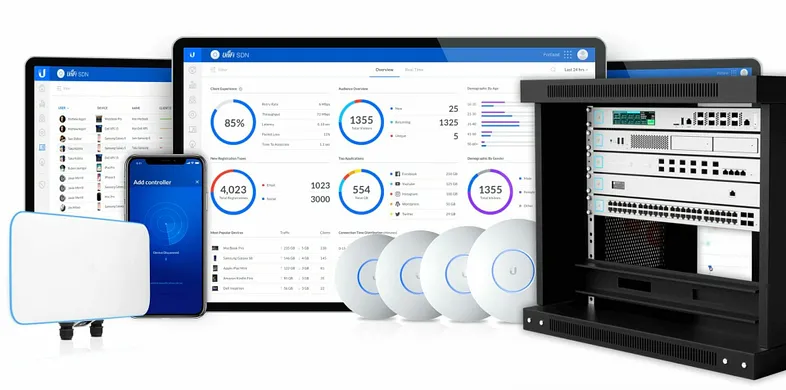
UniFi is a range of networking products from Ubiquiti, designed for both home and business users. The UniFi Controller is a centralized management system for UniFi access points, switches, security gateways, and cameras.
Instead of purchasing a UniFi Cloud Key, you can install the UniFi Controller software on your Ubuntu 22.04 or 24.04 server for free.
Step 1: Update Your System
Before installing the UniFi Controller, update and upgrade your system.
sudo apt update && sudo apt upgrade -y
Once completed, reboot your server.
sudo reboot now
Step 2: Install Required Dependencies
The UniFi Controller requires OpenJDK 17 and other dependencies. Install them using:
sudo apt install -y openjdk-17-jre-headless gnupg curl
Verify Java installation.
java -version
Step 3: Add the UniFi Repository
1. Import the UniFi GPG Key
curl -fsSL https://dl.ui.com/unifi/unifi-repo.gpg | sudo tee /usr/share/keyrings/unifi-repo.gpg > /dev/null
2. Add the UniFi Repository
echo ‘deb [signed-by=/usr/share/keyrings/unifi-repo.gpg] https://www.ui.com/download/unifi/debian stable main’ | sudo tee /etc/apt/sources.list.d/unifi.list
Update the package list.
sudo apt update
Step 4: Install the UniFi Controller
Now, install UniFi Controller.
sudo apt install -y unifi
Step 5: Start and Enable UniFi Service
Start the UniFi service.
sudo systemctl start unifi
Enable UniFi to start on boot.
sudo systemctl enable unifi
Check if UniFi is running.
sudo systemctl status unifi
Step 6: Allow UniFi in the Firewall
UniFi requires port 8443 for the web interface. Open the required ports in UFW.
sudo ufw allow 8443/tcp
sudo ufw allow 3478/udp
sudo ufw allow 8080/tcp
sudo ufw allow 8880/tcp
sudo ufw allow 8843/tcp
sudo ufw allow 6789/tcp
sudo ufw allow 1900/udp
sudo ufw allow 22/tcp
Enable the firewall.
sudo ufw enable
Check the firewall status.
sudo ufw status verbose
Step 7: Access the UniFi Web Interface
Once the installation is complete, access the UniFi Controller by opening a web browser and entering:
Since UniFi uses a self-signed SSL certificate, your browser may show a security warning. Click on Advanced → Proceed to the site.
Log in using the admin credentials you set during installation.
Conclusion
You have successfully installed UniFi Controller on Ubuntu 22.04 or 24.04. Now, you can manage your UniFi network, set up devices, and monitor performance.
Would you like help with configuring additional security settings, troubleshooting setup issues, or integrating UniFi with cloud services? Let me know! ?