How to Mount and Unmount an ISO Image in Linux (Latest Versions)
An ISO image is a disk image file that contains an exact copy of a CD/DVD or other storage media. Most Linux distributions provide installation files in .ISO format. Instead of burning the ISO to a physical disk, you can mount it and access its contents directly.
This guide explains how to mount and unmount ISO images in Linux using simple commands.
Step 1: Create a Mount Point
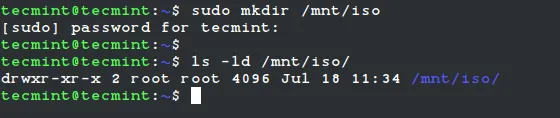
Before mounting an ISO image, create a directory to serve as the mount point. Run the following command:
sudo mkdir -p /mnt/iso
Step 2: Mount the ISO Image
To mount an ISO file, use the mount command with the loop option. Replace /path/to/image.iso with the actual path to your ISO file:
sudo mount -o loop /path/to/image.iso /mnt/iso
For example, if the ISO file is in the home directory, run:
sudo mount -o loop ~/Fedora-Server.iso /mnt/iso

Explanation of Options:
-o loop→ Uses a loop device to mount the ISO as a virtual disk./mnt/iso→ The directory where the ISO will be mounted.
Step 3: Access the Mounted ISO Files
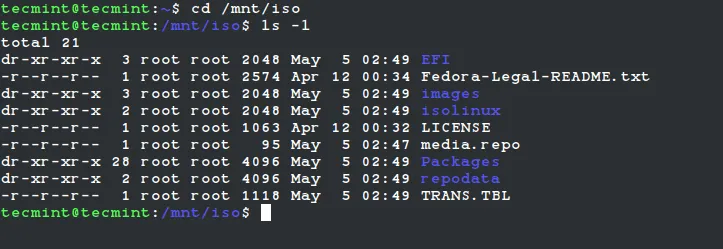
Once mounted, navigate to the mount point to view the files:
cd /mnt/iso
ls -l
You will see the contents of the ISO file in read-only mode.
Step 4: Unmount the ISO Image
To unmount the ISO, run:
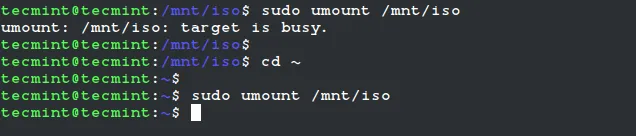
sudo umount /mnt/iso
If the system says the device is busy, ensure no processes are using it:
sudo fuser -km /mnt/iso
Then, try unmounting again.
Conclusion
Now you can mount and access ISO files in Linux without burning them to a CD/DVD. This method is useful for installing software, extracting files, or testing ISO images before creating bootable media.
Would you like help with creating or modifying ISO files? Let me know!